
“A good carpenter doesn’t blame his tools, but a great designer knows that the right software saves hours of work.”
In 2026, design has evolved far beyond drawing pixels on a canvas. Today’s designers are collaborators, system thinkers, and increasingly, AI-powered creators. The modern design workflow demands tools that can keep pace with real-time teamwork, intelligent automation, and accessibility-first thinking.
But here’s the challenge: the internet is flooded with endless “top 100 tools” lists that leave you more confused than when you started. This guide is different. We’re not listing every tool under the sun—we’re curating the industry standards that will actually get you hired and help you deliver world-class work.
Whether you’re a student building your first portfolio or a seasoned designer refining your stack, this is your roadmap to the essential tools of 2026.
Best UI Design Software (The Workbench)

These are the core tools where your visual design work happens—your digital workbench.
1. Figma (The King)
Why it wins: Figma has become the undisputed industry leader for one simple reason: it makes collaboration effortless. As a browser-based tool, it works on any laptop without installation headaches. The real-time multiplayer experience means your entire team can design together simultaneously, and the massive community ensures you’ll find plugins, templates, and tutorials for virtually anything.
Cost: The Starter plan is free and remarkably generous—perfect for individuals and small teams getting started.
Best for: Teams of any size, especially those working remotely or across different operating systems.
2. Adobe XD (The Ecosystem)
Best for: Designers who are already deeply integrated into the Adobe Creative Cloud ecosystem. If you’re constantly moving between Photoshop, Illustrator, and your UI design tool, XD offers seamless integration that can streamline your workflow.
The catch: Adobe has been shifting focus toward integrating XD features into other Creative Cloud apps, so keep an eye on their roadmap.
3. Sketch (The Mac Classic)
Best for: Native Mac users who prioritize performance and prefer an offline-first experience. Sketch remains a powerful, polished tool with a dedicated following, though its Mac-only limitation has caused many teams to migrate to cross-platform alternatives.
Standout feature: Exceptional performance on Mac hardware and a mature plugin ecosystem.
Quick Comparison
| Tool | Price (Starting) | Platform | Real-time Collaboration | Best For |
| Figma | Free | Browser, Mac, Win | Excellent | Most teams |
| Adobe XD | $9.99/mo | Mac, Win | Limited | Adobe users |
| Sketch | $99/year | Mac only | Via Cloud | Mac purists |
UX Research & Testing (The Data)

Great design isn’t based on assumptions—it’s based on evidence. These tools help you understand how real users interact with your designs.
a. Hotjar / Microsoft Clarity
Use case: Heatmaps and session recordings that show you exactly where users click, scroll, and get stuck. There’s something powerful about watching a real user struggle with a navigation element you thought was obvious.
Pro tip: Microsoft Clarity is completely free with no usage limits, making it perfect for startups and students.
b. Maze
Use case: Rapid usability testing. Send your Figma prototype to real users and get actionable data on whether they can complete key tasks. Maze provides metrics like misclick rates and task completion times—hard data that backs up your design decisions.
c. Typeform / Google Forms
Use case: Gathering qualitative feedback through beautifully designed surveys. Typeform offers a more engaging experience, while Google Forms is free and gets the job done.
AI Tools for UI/UX Design

If you’re not using AI in your design workflow in 2026, you’re working with one hand tied behind your back.
1. Generative UI (Uizard / Galileo AI)
These tools turn text prompts into wireframes and UI layouts. While they won’t replace your expertise, they’re incredible for rapid ideation and getting past the blank canvas problem. Type “dashboard for fitness tracking app” and get three different starting points in seconds.
2. AI Writing Assistants (ChatGPT)
Say goodbye to “Lorem Ipsum.” Use AI to generate realistic content for your mockups—product descriptions, user reviews, error messages, and more. Designs feel more real when they contain actual words instead of placeholder text.
3. Visual Enhancers
Tools like Remove.bg and Upscayl handle the tedious work instantly: removing backgrounds, upscaling low-resolution images, and cleaning up photos. What used to take 15 minutes now takes 15 seconds.
Accessibility Tools (The Ethical Stack)
Good design is design that everyone can use. In 2026, accessibility isn’t optional—it’s expected.
i. Stark
The essential Figma plugin for accessibility. Stark checks color contrast ratios against WCAG standards and simulates how your design looks to people with various types of colorblindness. It catches issues before they reach production.
ii. Contrast
A simple menu-bar app for Mac that lets you check WCAG compliance instantly as you design. Pick two colors, and Contrast tells you if they pass accessibility standards.
The bottom line: Building accessible products isn’t just ethical—it expands your user base and often results in clearer, better design for everyone.
No-Code Website Builders and Handoff
Your designs need to make it into the real world. These tools bridge the gap between design and development.
i. Framer vs. Webflow
Framer: Best for designers who want to publish portfolios and websites quickly without touching code. The interface feels like a natural extension of Figma, so the learning curve is gentle. Perfect for personal portfolios and landing pages.
Webflow: The powerhouse for complex, professional agency websites. Webflow gives you more control and flexibility but requires more time to master. If you need custom interactions and CMS functionality, Webflow delivers.
ii. Developer Handoff
Figma Dev Mode: The modern standard for design-to-development handoff. Dev Mode provides developers with exact specifications, CSS code, and design tokens. No more guesswork about spacing or colors.
Zeplin: The classic bridge between design and development. While Figma has largely absorbed this use case, Zeplin still serves teams that need strict specification workflows across multiple tools.
Whiteboarding & Strategy
Before you open your design tool, you need to think. These tools help teams ideate, plan, and align on strategy.
i. Miro
The industry standard for remote brainstorming. Infinite canvas, sticky notes, voting, and frameworks for everything from user journey mapping to sprint planning. If you’re working with a distributed team, Miro is essential.
ii. FigJam
Figma’s lightweight whiteboard built directly into the platform. If you already use Figma for design work, FigJam provides a seamless experience without switching tools. Perfect for quick team sketching sessions and early-stage ideation.
Free vs. Paid: The Verdict
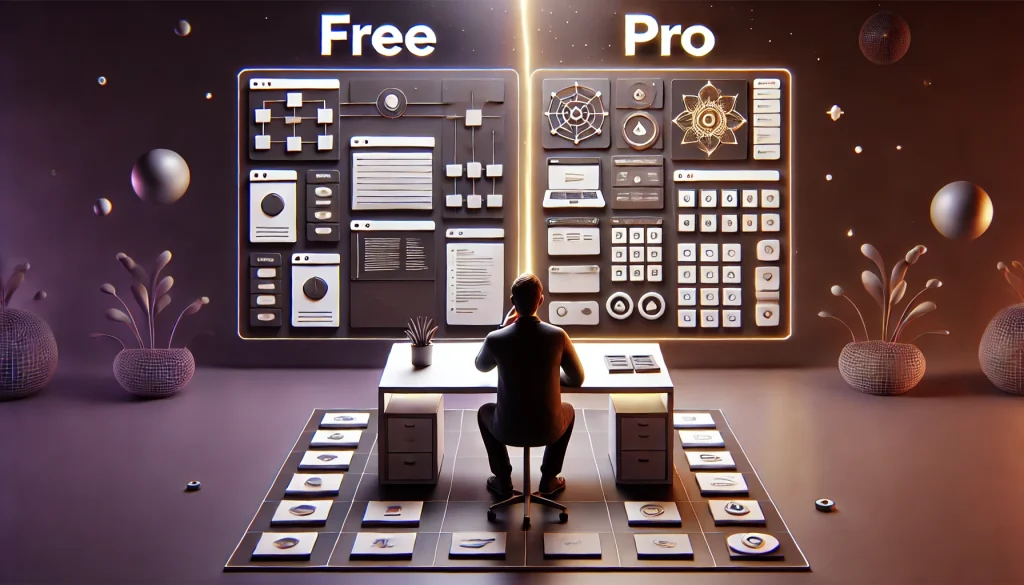
Let’s get real about budgets. You absolutely do not need to spend money to build a world-class portfolio.
i. The “Student” Stack (Cost: $0)
- Design: Figma (Starter)
- Research: Google Forms + Microsoft Clarity
- Portfolio: Behance or Notion
- Total cost: $0/month
This stack is completely professional. Major companies use these exact tools.
ii. The “Pro” Stack (Cost: ~$50-100/month)
- Design: Figma (Professional)
- Website: Framer
- Research: Hotjar (Business) + Maze
- Collaboration: Miro
This stack scales with your career and handles enterprise-level projects.
The verdict: Start with free tools. Upgrade to paid tiers only when you’re hitting specific limits—like needing unlimited Figma files or testing with more users on Maze.
Mac vs. PC in 2026
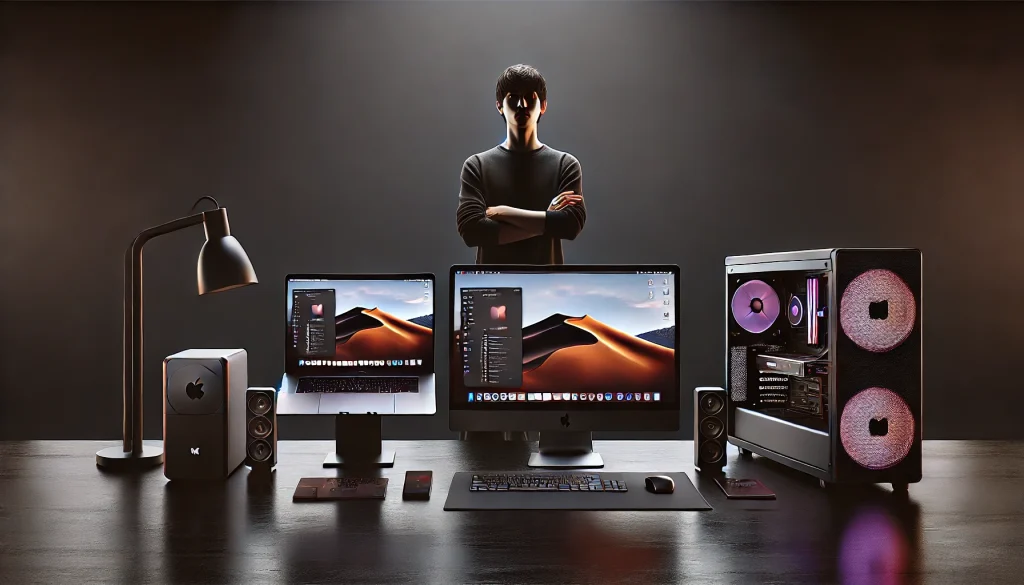
Let’s settle this debate once and for all.
The truth: The gap has closed dramatically. Since Figma runs in the browser, a decent Windows laptop performs just as well as a MacBook for UI design work. What matters more than the operating system is having at least 16GB of RAM and a solid-state drive.
The only exception: if you specifically need Sketch or are deeply embedded in the Apple ecosystem, then Mac makes sense. Otherwise, buy the computer that fits your budget and preferences.
Conclusion

Tools evolve, trends come and go, but design principles remain constant. The best tool is the one you actually master.
Our recommendation? Start with Figma. It’s free, industry-standard, collaborative, and has the resources to support your learning journey. Combine it with free research tools like Microsoft Clarity and Google Forms, and you have everything you need to create professional work.
Remember: your portfolio isn’t impressive because of the tools you used—it’s impressive because of the problems you solved and the thought process you demonstrate.
Ready to put these tools into action? Read our Ultimate UI/UX Best Practices Guide to learn the principles that make great design work.
FAQs
Q: What is the best free UI design tool in 2026?
A: Figma is widely considered the best free UI design tool. Its “Starter” plan is generous, browser-based (works on any computer), and is the industry standard for professional teams.
Q: Is Sketch better than Figma?
A: For most users, Figma is better due to real-time collaboration. Sketch is a powerful native Mac app, but Figma allows Windows and Mac users to work together on the same file instantly.
Q: Do I need a Mac for UI/UX design?
A: No, you do not need a Mac. While Sketch is Mac-only, industry-leading tools like Figma and Adobe XD work perfectly on Windows.
Q: What tools do UX researchers use?
A: UX researchers primarily use Hotjar (heatmaps), Maze (testing), and Miro (brainstorming). They focus on tools that gather data and user feedback rather than just visual design tools.
Q: Is Framer better than Webflow for portfolios?
A: For designers, Framer is often better because its interface is very similar to Figma, making it easier to learn. Webflow is more powerful but has a steeper learning curve.
Q: Can I use Canva for UI/UX design?
A: Canva is not recommended for professional UI/UX design. While good for social media graphics, it lacks the technical features (prototyping, variables, auto-layout) needed for app and website design.
Q: How much does Figma cost?
A: Figma is free for individuals. The Professional plan, which allows for unlimited files and team libraries, typically costs around $12-$15 per editor/month.
Q: What is the best prototyping tool?
A: Figma and Protopie are the top prototyping tools. Figma is great for standard click-through prototypes, while Protopie is used for advanced, high-fidelity micro-interactions.
Q: Do I need to learn code to use these tools?
A: No, these are “No-Code” design tools. However, Figma has “Dev Mode” features that help translate your designs into CSS/Swift code for developers.
Q: What is the difference between Miro and FigJam?
A: Miro is a standalone powerhouse for enterprise brainstorming. FigJam is a lightweight whiteboard built directly into Figma. If you already use Figma, FigJam is often the more convenient choice.